Add space to a PDF for notes
Lecture slides and readings rarely leave room to write. You can shrink the page and cramp notes into the margin, or keep a separate notebook and lose the link between the note and the slide. PDFSpacer inserts writing space between the parts of a PDF, so your notes sit directly under the slide or paragraph they belong to.
It works in the browser, is free, and the PDF stays on your device.
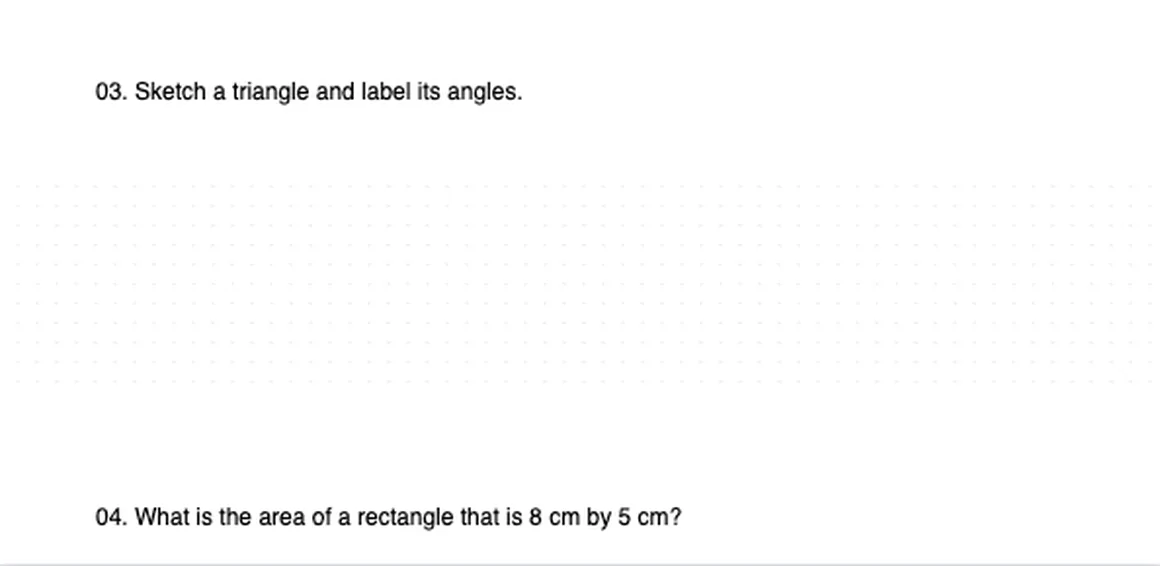
How to add note space to a PDF
- Open the PDF in PDFSpacer. Slide decks exported from PowerPoint or Keynote, journal articles and scanned textbook chapters all work.
- Click where you want to write. Click in a gap below a slide, heading or paragraph. A spacer appears and the rest of the page moves down.
- Pick a paper style. Plain for free-form notes, Ruled for text, Dot grid for diagrams and mind maps, Squared for equations.
- Repeat after each section you want to annotate, then click Export PDF.
Notes on an iPad or Android tablet
Export as Single Long Page. The whole document becomes one continuous sheet, which is the easiest format to handwrite on in GoodNotes, Notability, Samsung Notes, Xodo or Apple's Preview. There are no page breaks, so a note never gets cut in half. Import the exported file the same way you would any other PDF.
If you prefer separate pages, or you plan to print, choose Paginated A4. Turn on A4 breaks in the editor to see where each page will end.
A layout that works for lecture slides
Slide decks are usually exported at several slides per page. Insert a plain spacer of 60 to 90 mm below each slide and you get a note-taking sheet with the slide on top and your notes directly underneath. Use Duplicate to copy the spacer so every slide gets the same amount of room, and adjust individual ones later where a topic needs more.
Add pages or space to a PDF of your essay or lecture notes
If you are trying to add pages to a PDF version of an essay or your lecture notes so there is somewhere to write, you usually do not need whole blank pages. Click under the paragraph or slide you want to comment on and the room opens exactly there, with the rest of the document pushed down. If you do want a full blank page, make one spacer about 270 mm tall and export as Paginated A4.
This also works for a reading you have been set: insert a short ruled spacer after each section, print it or open it on a tablet, and your summary sits next to the text it summarises.
How to add space in Notability or GoodNotes
Notability and GoodNotes can insert a blank page after the current one, but neither can push the rest of a page down to open a gap under a paragraph. Run the PDF through PDFSpacer first, then import the exported file. The space is part of the PDF itself, so it stays in place on every device and in any app, and you can still use the app's own blank pages on top.
Space below the content or in the margin?
PDFSpacer adds space between parts of a page, across its full width. It does not widen the side margins. If you want a blank column beside the original page for margin notes, a margin tool is the better fit. If you want notes that follow the flow of the document, with each note under the slide, question or paragraph it relates to, that is what PDFSpacer is for. The two approaches can be combined by running the margin tool first.
The exported PDF keeps text as text, so you can still search and highlight it. Links, form fields and existing annotations are not carried across, so add your own annotations after exporting.
Common questions
Will the exported PDF open in GoodNotes and Notability?
Yes. It is a standard PDF. Long-page exports use the PDF user unit feature to allow very tall pages; current versions of GoodNotes, Notability, Preview, Acrobat and Chrome display them correctly.
Can I add space to a scanned textbook chapter?
Yes. Scanned pages are split at the point you click. Pick a gap between paragraphs or below a figure so the split does not cut through a line.
Does it handle a 200-slide deck?
Usually, yes. Very large PDFs are limited by your browser's memory rather than by PDFSpacer. If a huge deck struggles, split it into a few files first.
Can I come back and add more space later?
Yes. Your PDF and layout are saved in the browser, and Project > Download layout gives you a separate JSON file you can load again with the same PDF.
Can I add a whole blank page instead of a gap?
Yes. Make a spacer about 270 mm tall and export as Paginated A4; the spacer becomes a full empty page. Smaller spacers give you a gap under the paragraph instead.