Add lines to a PDF worksheet for students to write answers
A worksheet with questions and no lines invites messy answers. Drawing lines one at a time with a PDF annotation tool is slow, and converting the PDF to Word usually breaks the layout. PDFSpacer takes a different approach: click below a question and it inserts a block of ruled lines, moving the next question down to make room.
The result is a normal PDF you can print or share, and the original questions are untouched.
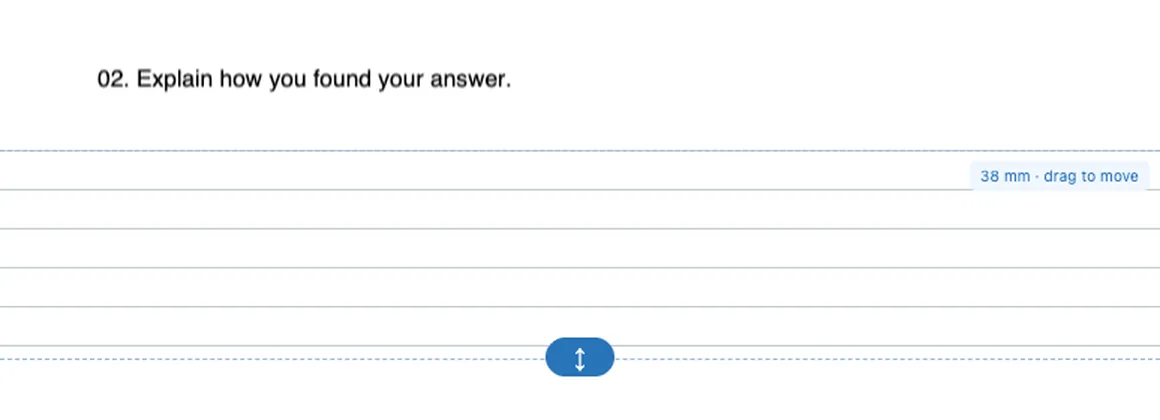
Example: a ten-question comprehension sheet
A one-page reading comprehension has ten questions stacked with a single line gap between them. Open it, click under question 1, set Ruled, 32 mm, and the sheet grows by four lines at that point. Duplicate that spacer nine times and drag each copy under the next question. Turn on A4 breaks: the sheet now spans two pages, with the break falling between questions 6 and 7. Export as Paginated A4 and print double-sided. Total time is about three minutes, and the questions are the publisher's original text.
How to add answer lines to a worksheet
- Open the worksheet in PDFSpacer. It can be an exported Word document, a scanned sheet or a PDF from a textbook publisher.
- Click in the gap under a question. A spacer appears. In the panel on the right, set Paper style to Ruled.
- Set the height and line spacing. The height decides how many lines appear. Pattern spacing sets the gap between lines.
- Duplicate for the other questions. Select the spacer, click Duplicate, and drag the copy under the next question so every answer area matches.
- Export. Choose Paginated A4 for printing and download the PDF.
Choosing a line spacing
- Early years and Key Stage 1: 12 to 15 mm lines give room for large handwriting.
- Upper primary: 10 mm.
- Secondary and adult learners: 8 mm, the same as a standard exercise book.
The lines are light grey so they sit behind handwriting and do not compete with the printed question. For maths worksheets choose Squared instead, and for drawing tasks choose Plain or Dot grid.
How many lines does a given height give you?
The spacer height is set in millimetres on the exported A4 page, so the number of lines is simply the height divided by the line spacing. A few common combinations:
- 24 mm at 8 mm spacing: 3 lines, enough for a one-sentence answer.
- 40 mm at 8 mm spacing: 5 lines, a short paragraph.
- 50 mm at 10 mm spacing: 5 lines for upper primary handwriting.
- 80 mm at 8 mm spacing: 10 lines, an extended answer.
- 90 mm at 15 mm spacing: 6 wide lines for early writers.
Type the height directly into the Height field when you want a specific line count. The first line sits a little below the top edge of the spacer so handwriting does not collide with the question above.
Other ways to add lines, and when to use them instead
Drawing lines with an annotation tool (Acrobat, Preview, Kami, Xodo) works when there is already a gap under the question and you only need two or three lines. Each line is a separate shape, so a whole worksheet is slow, and the lines cannot be placed where there is no room.
Converting the PDF to Word and pressing Enter under each question gives you full control, but conversion often breaks columns, images and numbering, and a scanned worksheet converts to nothing usable.
Re-typing the worksheet is the cleanest result when you own the original and have the time.
PDFSpacer fits the common middle case: a finished PDF you do not want to rebuild, which needs real answer space under every question. It adds the room and the lines in one step, works on scans, and leaves the original text untouched.
Lines, boxes or blank space?
Ruled lines suit sentence and paragraph answers. For a single-word or numeric answer a short plain spacer of 15 to 20 mm is enough and looks cleaner than a lined block. For working out, squared paper helps pupils keep columns aligned. You can mix styles on the same page; each spacer has its own style.
Worksheets for Google Classroom and tablets
Export as Single Long Page if pupils will complete the sheet on a tablet. One tall page scrolls smoothly in Kami, GoodNotes, Notability and the Google Classroom annotation view, and there are no page breaks to land in the middle of an answer. Use Paginated A4 when the class will work on paper.
The exported PDF keeps the original text as text. Interactive form fields, links and existing annotations are not included, so add lines before you add any fillable fields in another tool.
Common questions
Can I add lines on top of the existing text?
No. PDFSpacer inserts new space rather than drawing over the page, so a spacer always pushes the content below it down. That is what keeps the printed questions readable.
Can I change the colour or thickness of the lines?
Not at the moment. Lines are printed in a light grey at a fixed thickness, which prints reliably on any printer and photocopier.
My worksheet is a Word document. Can I use it?
Export it to PDF first from Word or Google Docs, then open the PDF in PDFSpacer.
Does it work on a scanned worksheet?
Yes. Click in a gap between questions and the scan is split there. Very tight gaps can be widened by zooming in before you click.