Add note lines under each slide in a PDF
Lecturers hand out slides as a PDF, one slide per page, with no room to write. PowerPoint can print a handout with lines beside tiny thumbnails, but that only works if you have the original deck and you are printing. PDFSpacer takes the PDF you were given and puts ruled lines, squares or a dot grid under every slide, at full width, ready for GoodNotes, Notability or the printer.
It is free, needs no account, and the file never leaves your browser.
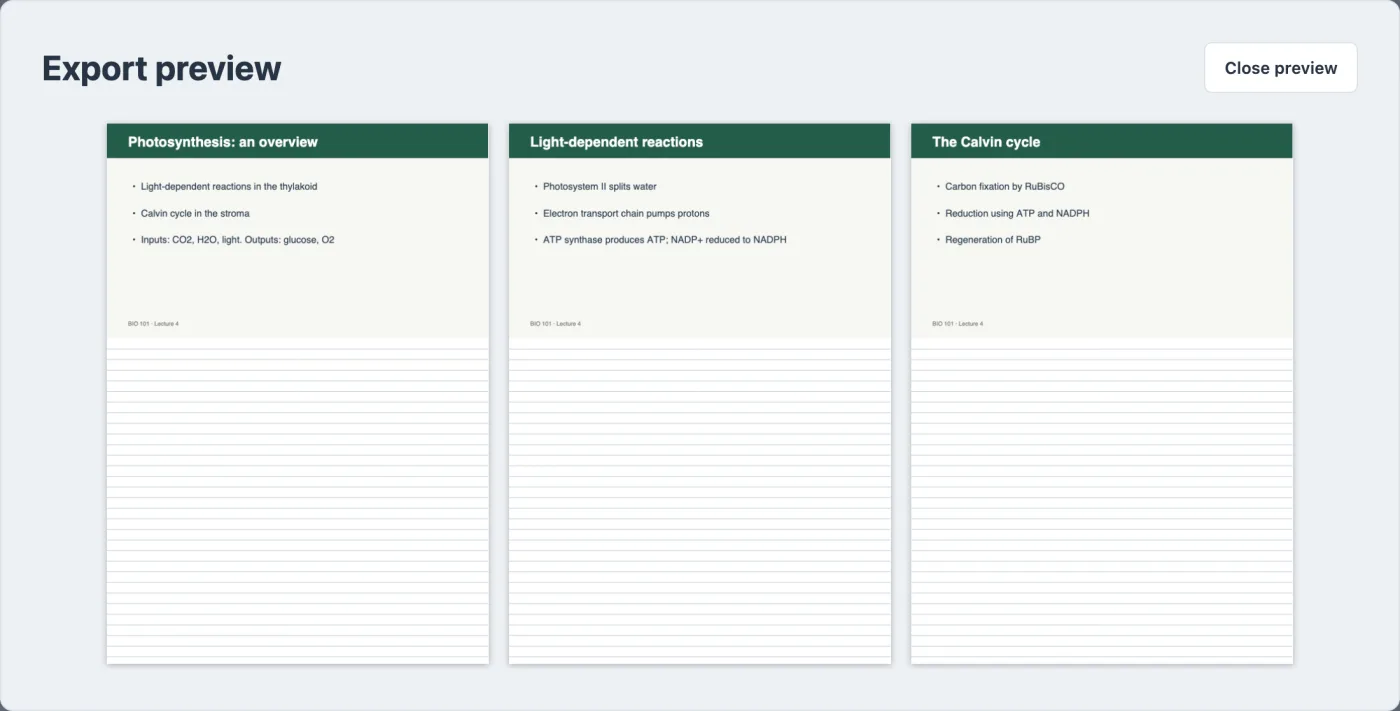
How to turn slides into a handout with lines
- Open the slides PDF in PDFSpacer. Decks exported from PowerPoint, Keynote and Google Slides all work, as do scanned handouts.
- Click Every page in the toolbar and choose Fill the rest of the sheet. Pick Ruled lines for written notes, Squared paper for working, or Dot grid for diagrams.
- Click Add to every page. Every slide gets writing space that runs to the bottom of its A4 sheet. A widescreen slide takes about a third of the sheet, so you get roughly 180 mm of lines under each one.
- Export as Paginated A4 and open the file in your notes app or print it. Choose Single long page instead for one continuous scroll on a tablet.
Slides with a notes section in GoodNotes or Notability
GoodNotes users have asked for a "PowerPoint PDF with note section" import option for years, and Notability has the same gap: both apps let you add a blank page after a slide, but neither can put a lined area under the slide itself. Prepare the PDF in PDFSpacer first and the note area is baked into the document. Your handwriting sits directly under the slide it refers to, exports with the file, and looks the same on an iPad, a laptop and paper.
If you prefer a whole fresh page after each slide rather than lines under it, choose Full blank page in the same dialog. See inserting a blank page after every page.
Printing slides with lines for notes
For a printed handout, export as Paginated A4 and print as usual. Each sheet carries one slide and its lines, so a 40-slide lecture becomes 40 sheets, or 20 double-sided. If that is too many, use PowerPoint's own three-slides-per-page handout for thumbnails with lines beside them; PDFSpacer is the better choice when you want the slide readable at full width with the notes underneath.
Slides are scaled to the width of A4 and copied as vectors, so text stays sharp and nothing is cropped. Pages that already use most of the sheet, such as portrait notes pages, get a whole extra sheet of lines instead of a thin strip.
Decks exported with several slides per page
Some lecturers export two or three slides per page. Fill the rest of the sheet still works, adding lines after each page, but you may want room after each slide. Choose Add space, click in the gap under a slide, set the height, then use Duplicate and drag the copy under the next slide. The notes guide covers this layout in more detail.
Common questions
My deck is exported with several slides per page. Does this still work?
Yes. Fill the rest of the sheet adds lines after each page of the PDF, whatever is on it. For a page with three slides, click below each slide with Add space instead to put lines under every one.
Can I use this in GoodNotes or Notability?
Yes. Import the exported PDF like any other document. The lines are part of the PDF, so every slide keeps its note area on any device and in any app.
Will the slides be shrunk?
Each slide is scaled to the width of an A4 page, which for a 16:9 slide leaves more than half the sheet for notes. Text and graphics are copied as vectors, so nothing goes blurry.
What if I want the lines beside the slide instead of under it?
PDFSpacer adds space below content across the full page width, not beside it. For lines next to small slides, print three slides per page from PowerPoint; for full-width slides with room underneath, use PDFSpacer.
Is my file uploaded?
No. The PDF is opened and rebuilt in your browser. Nothing is sent to a server and there is no account, limit or watermark.